It's fast and easy to schedule a new live stream broadcast if you have a Tukios website.
It takes just one click.
1. Sign in to your Tukios Website editor and navigate to Obituaries in the left menu.
2. Create a new Obituary (or select the Obituary of the person whose ceremony you intend to live stream).
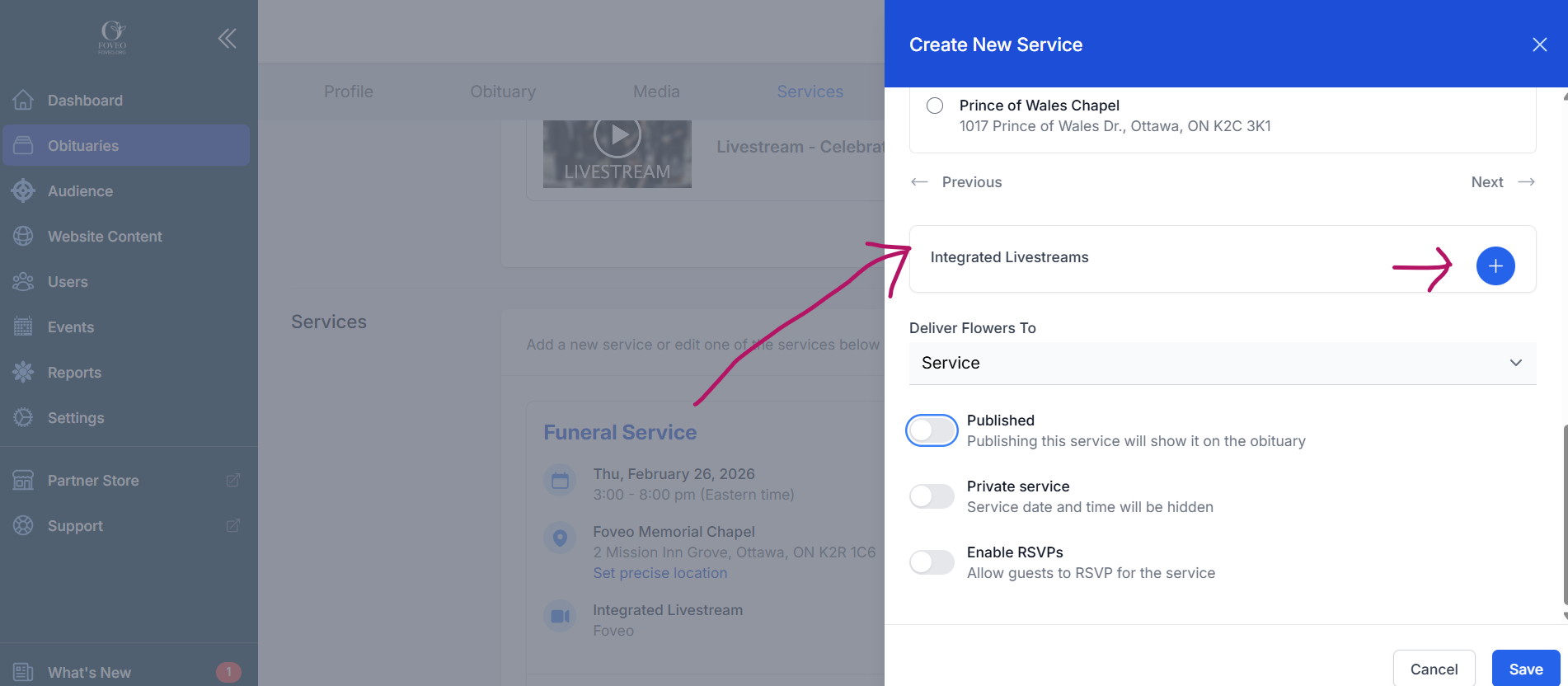
3. In the Services section, click on the Service you want to live stream (or add a new Service). An editing panel will open on the right side of the screen (pictured below).
4. Click the plus symbol (+) next to "Integrated Livestreams" to add a live stream ("Integrated Livestreams" is just before "Deliver Flowers To"). Note: This is also where you can cancel/delete a live stream you have scheduled.
5. When you Save that Service, a live stream broadcast player will be added automatically to the obituary page (below obituary text). You can also sign in to Foveo.app to verify the stream was booked (but you don't need to).
IMPORTANT - To ensure the Next of Kin automatically receives an email from your funeral home with the guest invitation link, you must first add that person as a Family Member and designate them as Next of Kin (in the Family Member section of the Tukios obituary page). Learn More Here
Alternative: Schedule a Live Stream in Foveo.app
Watch this video to learn how to arrange a new live stream broadcast directly in Foveo.app (in just 3 minutes).
Important Note: After scheduling it in Foveo, you must manually copy and paste the Embed URL link from Foveo (find the link in Streams > List > [Stream Name] > DETAILS) into the Media section of a Tukios obituary page (under Add An Existing Video).
It takes just one click.
1. Sign in to your Tukios Website editor and navigate to Obituaries in the left menu.
2. Create a new Obituary (or select the Obituary of the person whose ceremony you intend to live stream).
3. In the Services section, click on the Service you want to live stream (or add a new Service). An editing panel will open on the right side of the screen (pictured below).
4. Click the plus symbol (+) next to "Integrated Livestreams" to add a live stream ("Integrated Livestreams" is just before "Deliver Flowers To"). Note: This is also where you can cancel/delete a live stream you have scheduled.
5. When you Save that Service, a live stream broadcast player will be added automatically to the obituary page (below obituary text). You can also sign in to Foveo.app to verify the stream was booked (but you don't need to).
IMPORTANT - To ensure the Next of Kin automatically receives an email from your funeral home with the guest invitation link, you must first add that person as a Family Member and designate them as Next of Kin (in the Family Member section of the Tukios obituary page). Learn More Here
Alternative: Schedule a Live Stream in Foveo.app
Watch this video to learn how to arrange a new live stream broadcast directly in Foveo.app (in just 3 minutes).
Important Note: After scheduling it in Foveo, you must manually copy and paste the Embed URL link from Foveo (find the link in Streams > List > [Stream Name] > DETAILS) into the Media section of a Tukios obituary page (under Add An Existing Video).