It's fast and easy to schedule a new live stream broadcast if you have a Tukios website.
It takes just one click.
1. Sign in to your Tukios Website editor and navigate to Obituaries in the left menu.
2. Create a new Obituary (or select the Obituary of the person whose ceremony you intend to livestream).
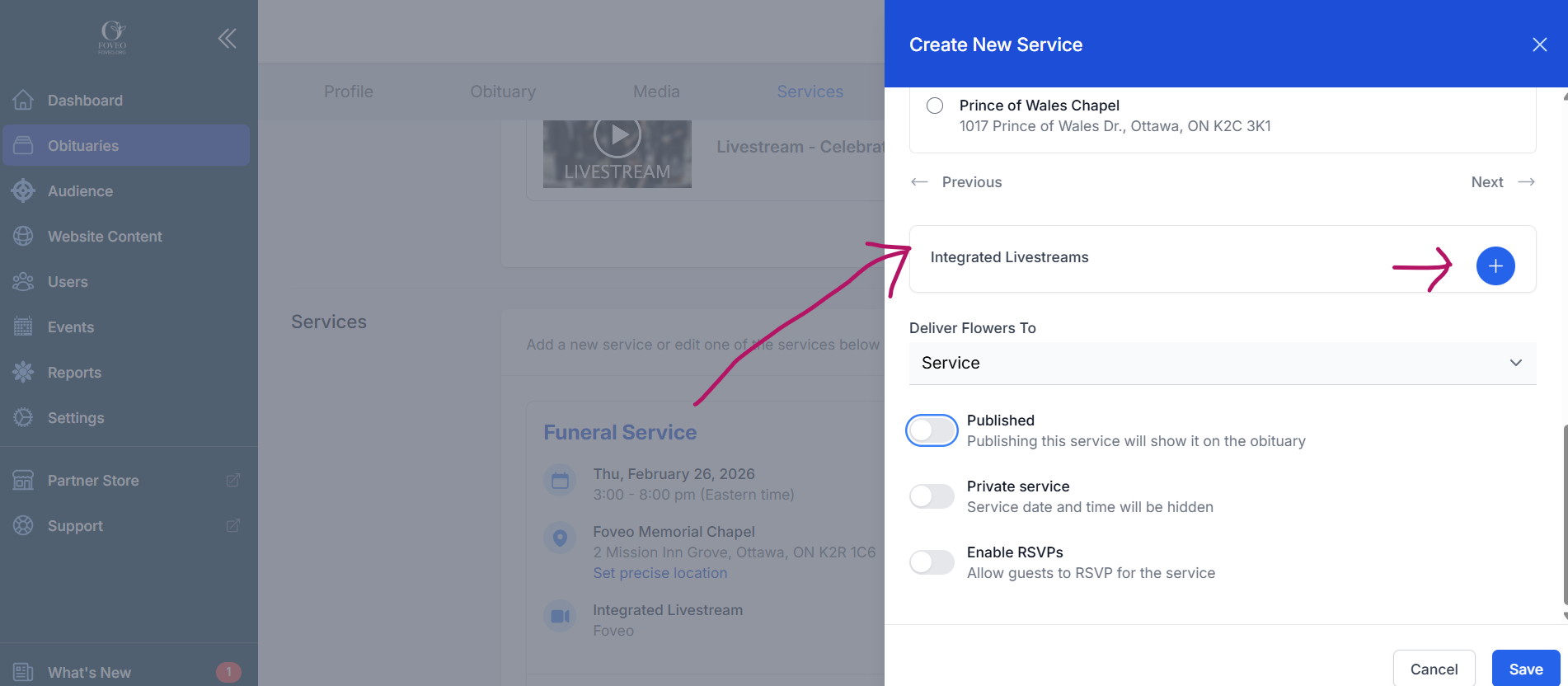
3. In the Services section, click on the Service you want to live stream (or add a new Service). An editing panel will open on the right side of the screen (pictured below).
4. Click the plus symbol (+) next to "Integrated Livestreams" to add a livestream ("Integrated Livestreams" is just before "Deliver Flowers To"). Note: This is also where you can cancel/delete a livestream you have scheduled.
5. When you Save that Service, a livestream broadcast player will be added automatically to the obituary page (below obituary text). You can also sign in to Foveo.app to verify the stream was booked (but you don't need to).
IMPORTANT - To ensure the Next of Kin automatically receives an email from your funeral home with the guest invitation link, you must first add that person as a Family Member and designate them as Next of Kin (in the Family Member section of the Tukios obituary page). Learn More Here
Alternative: Schedule the Livestream in Foveo.app
Watch this video to learn how to arrange a new livestream broadcast directly in Foveo.app (in just 3 minutes). Important Note: If you want to embed the livestream you just scheduled in Foveo, copy the Embed URL link from Foveo (get the URL by navigating in the left menu to Streams > List > [Stream Name] > DETAILS) and paste it into the Media section of the Tukios obituary page (under Add An Existing Video).
It takes just one click.
1. Sign in to your Tukios Website editor and navigate to Obituaries in the left menu.
2. Create a new Obituary (or select the Obituary of the person whose ceremony you intend to livestream).
3. In the Services section, click on the Service you want to live stream (or add a new Service). An editing panel will open on the right side of the screen (pictured below).
4. Click the plus symbol (+) next to "Integrated Livestreams" to add a livestream ("Integrated Livestreams" is just before "Deliver Flowers To"). Note: This is also where you can cancel/delete a livestream you have scheduled.
5. When you Save that Service, a livestream broadcast player will be added automatically to the obituary page (below obituary text). You can also sign in to Foveo.app to verify the stream was booked (but you don't need to).
IMPORTANT - To ensure the Next of Kin automatically receives an email from your funeral home with the guest invitation link, you must first add that person as a Family Member and designate them as Next of Kin (in the Family Member section of the Tukios obituary page). Learn More Here
Alternative: Schedule the Livestream in Foveo.app
Watch this video to learn how to arrange a new livestream broadcast directly in Foveo.app (in just 3 minutes). Important Note: If you want to embed the livestream you just scheduled in Foveo, copy the Embed URL link from Foveo (get the URL by navigating in the left menu to Streams > List > [Stream Name] > DETAILS) and paste it into the Media section of the Tukios obituary page (under Add An Existing Video).