It's fast and easy to schedule a new live stream broadcast with a Tukios website.
1. Sign in to your Tukios Website editor and navigate to Obituaries in the left menu.
2. Create a new Obituary (or select the Obituary of the person whose ceremony you intend to livestream).
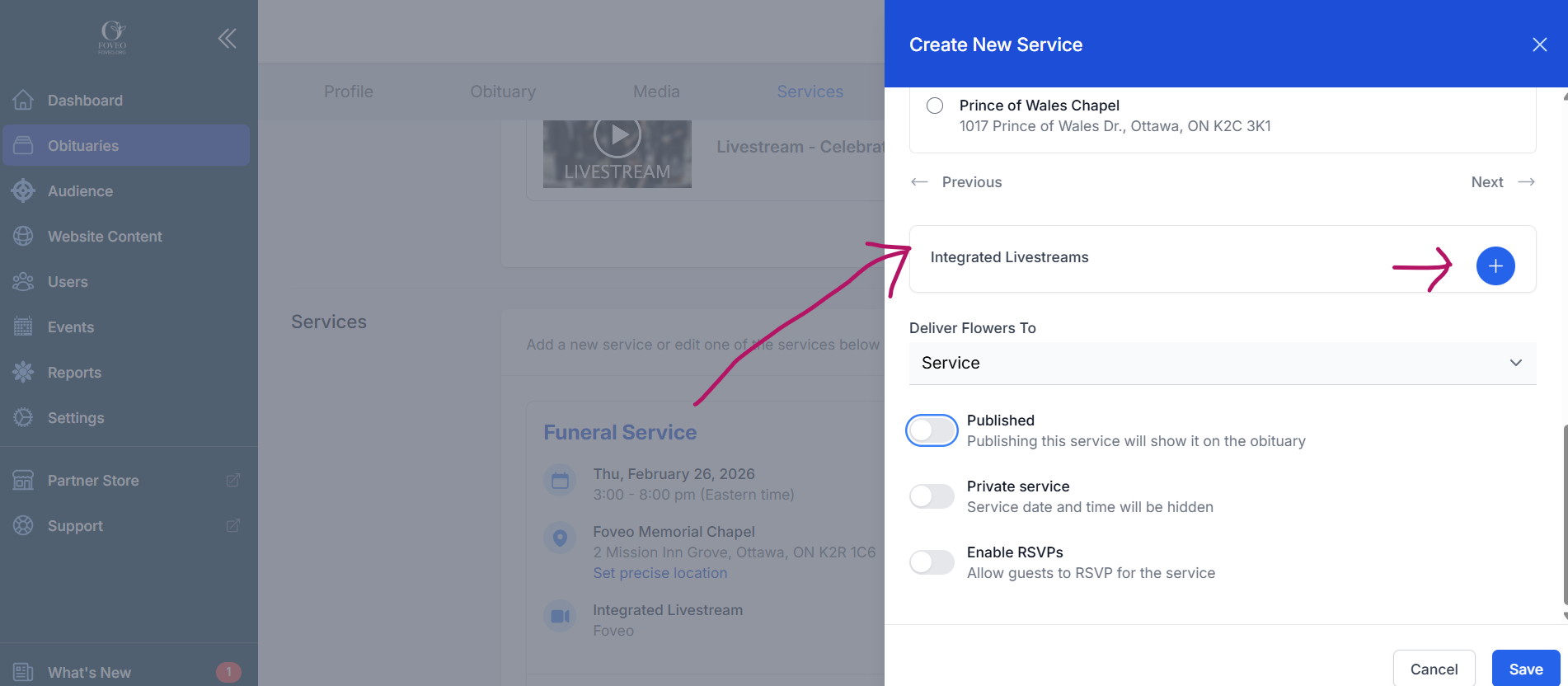
3. In the Services section, click on the Service name of you want to live stream (or add a new Service). An editing panel will open on the right side of the screen (pictured below).
4. Click on the plus symbol (+) next to "Integrated Livestreams" to add a livestream (just before the "Deliver Flowers To" details). Note: This is also where you can cancel/delete a livestream you have scheduled.
5. Click on Save. When you Save that Service, a livestream broadcast player will be added automatically to the obituary page (beneath the obituary text). The livestream will also have been created automatically in Foveo.
IMPORTANT NOTE - If you have already added the name and email address of the Next of Kin in Tukios (before you added the livestream), that person will automatically receive an email from your funeral home (sent by Foveo) with a link to share with others they wish to invite to attend via livestream. That email also includes their new Foveo.app username and password, so they can view and download the broadcast recording afterward (Learn More).
Alternative: Schedule the Livestream directly in Foveo.app
1. Sign in to Foveo with your username and password or your funeral home's admin username and password.
2. Create a new livestream (Watch this video to learn how to schedule a livestream broadcast in Foveo.app).
3. After creating a new Stream, navigate to DETAILS (on right side of page in Streams > List view).
4. Find the Embed URL and copy and paste it into the Media section of the obituary page in Tukios ("Add an Existing Video").
1. Sign in to your Tukios Website editor and navigate to Obituaries in the left menu.
2. Create a new Obituary (or select the Obituary of the person whose ceremony you intend to livestream).
3. In the Services section, click on the Service name of you want to live stream (or add a new Service). An editing panel will open on the right side of the screen (pictured below).
4. Click on the plus symbol (+) next to "Integrated Livestreams" to add a livestream (just before the "Deliver Flowers To" details). Note: This is also where you can cancel/delete a livestream you have scheduled.
5. Click on Save. When you Save that Service, a livestream broadcast player will be added automatically to the obituary page (beneath the obituary text). The livestream will also have been created automatically in Foveo.
IMPORTANT NOTE - If you have already added the name and email address of the Next of Kin in Tukios (before you added the livestream), that person will automatically receive an email from your funeral home (sent by Foveo) with a link to share with others they wish to invite to attend via livestream. That email also includes their new Foveo.app username and password, so they can view and download the broadcast recording afterward (Learn More).
Alternative: Schedule the Livestream directly in Foveo.app
1. Sign in to Foveo with your username and password or your funeral home's admin username and password.
2. Create a new livestream (Watch this video to learn how to schedule a livestream broadcast in Foveo.app).
3. After creating a new Stream, navigate to DETAILS (on right side of page in Streams > List view).
4. Find the Embed URL and copy and paste it into the Media section of the obituary page in Tukios ("Add an Existing Video").